How to sell a car
From starting the deal to signed paperwork and a sold unit, the whole sales flow in ReconPath.
 1 / 6
ReconPath takes a car from the recon lane all the way to a signed, sold deal without re-keying anything. Here is the whole flow.
1. Start the sale
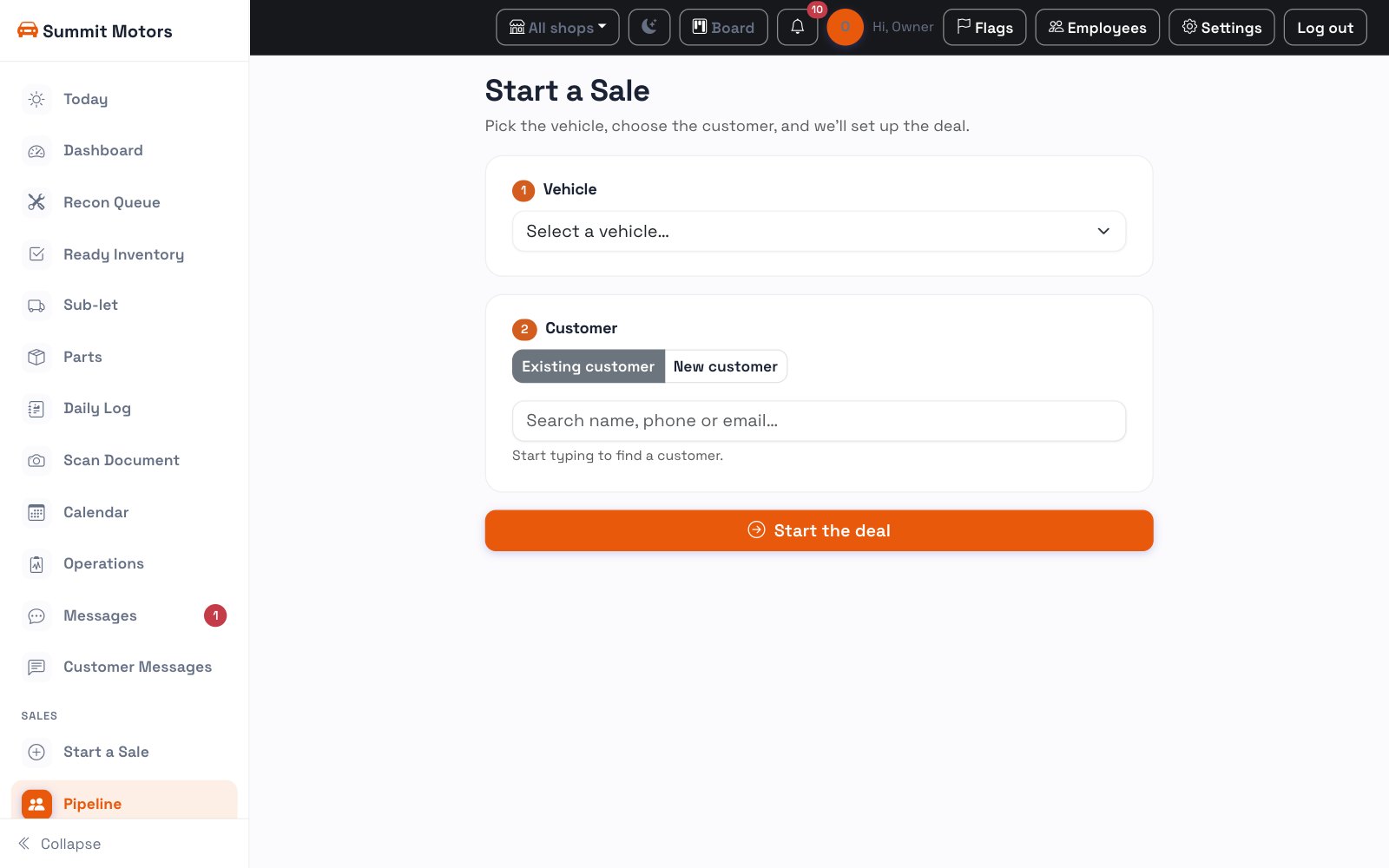
From the sidebar, open Start a Sale. Pick the vehicle you just reconditioned, then choose an existing customer or add a new one, name, phone, email and address. Press Start the deal and ReconPath creates the opportunity and a deal worksheet in one step.
2. Work it in the pipeline
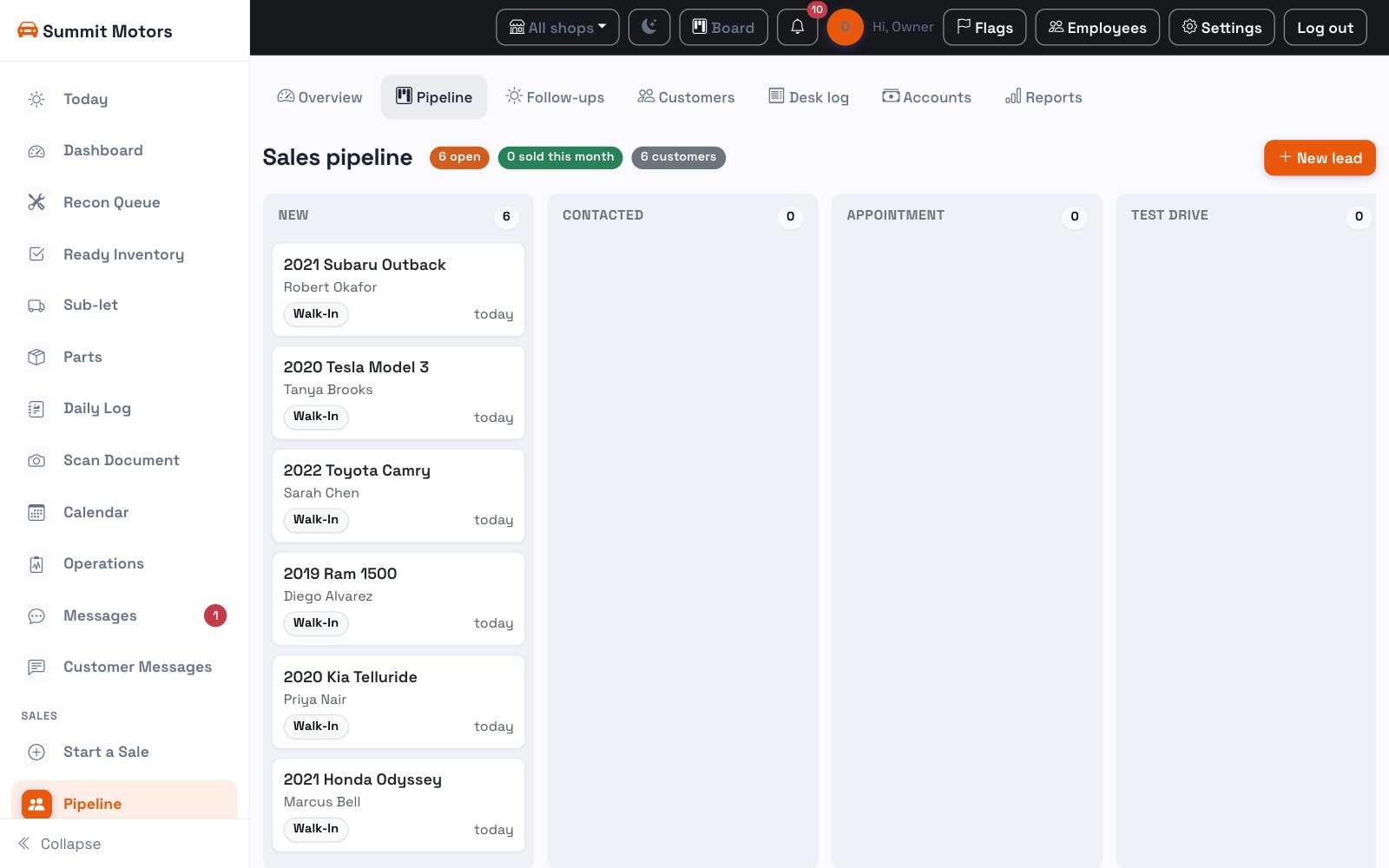
The deal shows in your Pipeline across stages, New, Contacted, Appointment, Test Drive and Working Deal. Message the customer, log activity, and move the card along as the deal progresses.
3. Desk the deal
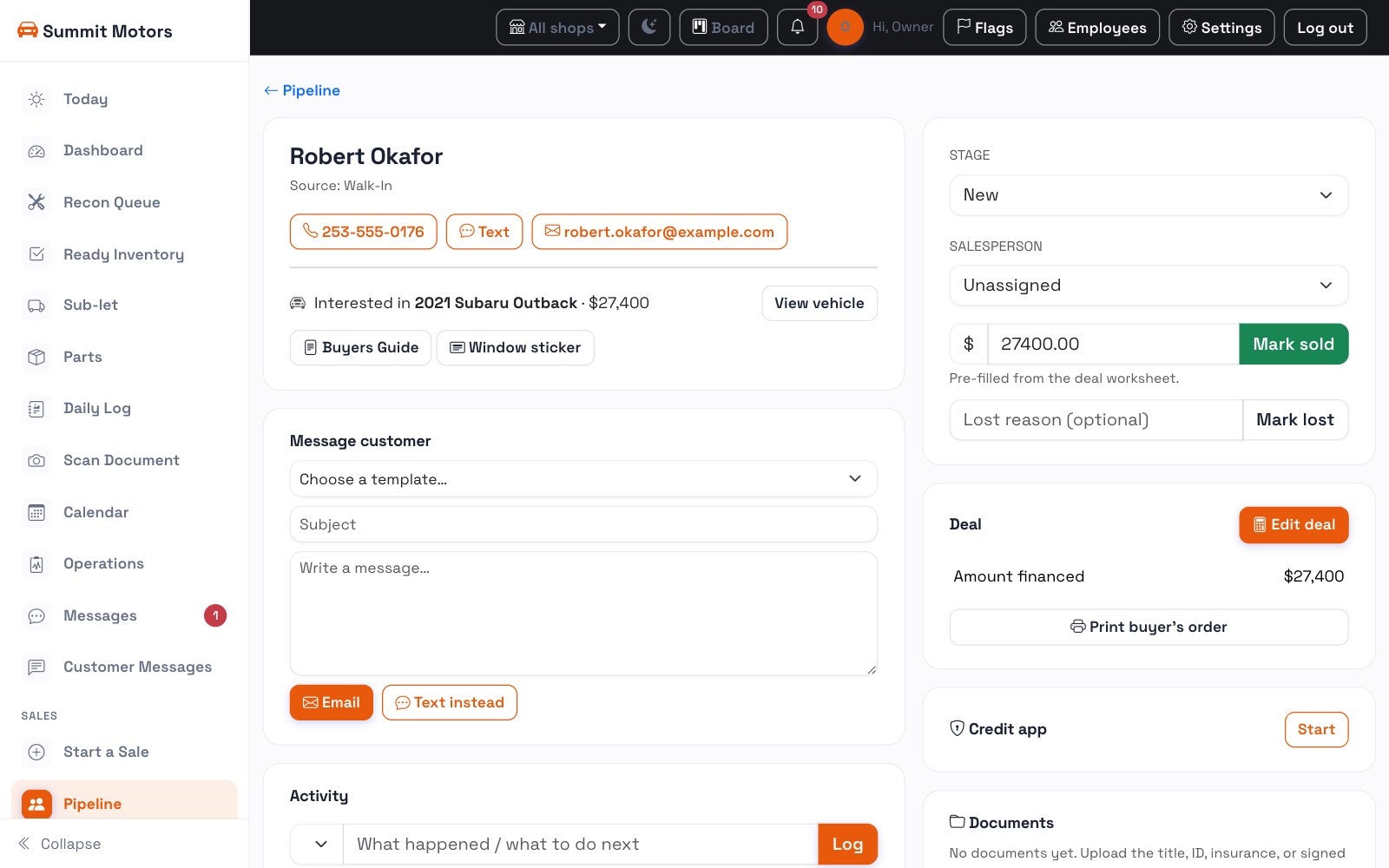
Open the deal and enter the numbers: selling price, trade allowance and payoff, fees, tax rate, rebate and down payment. Choose cash or financing (in-house or an outside lender), and ReconPath shows the amount financed and an estimated monthly payment as you type.
4. Print or e-sign the paperwork
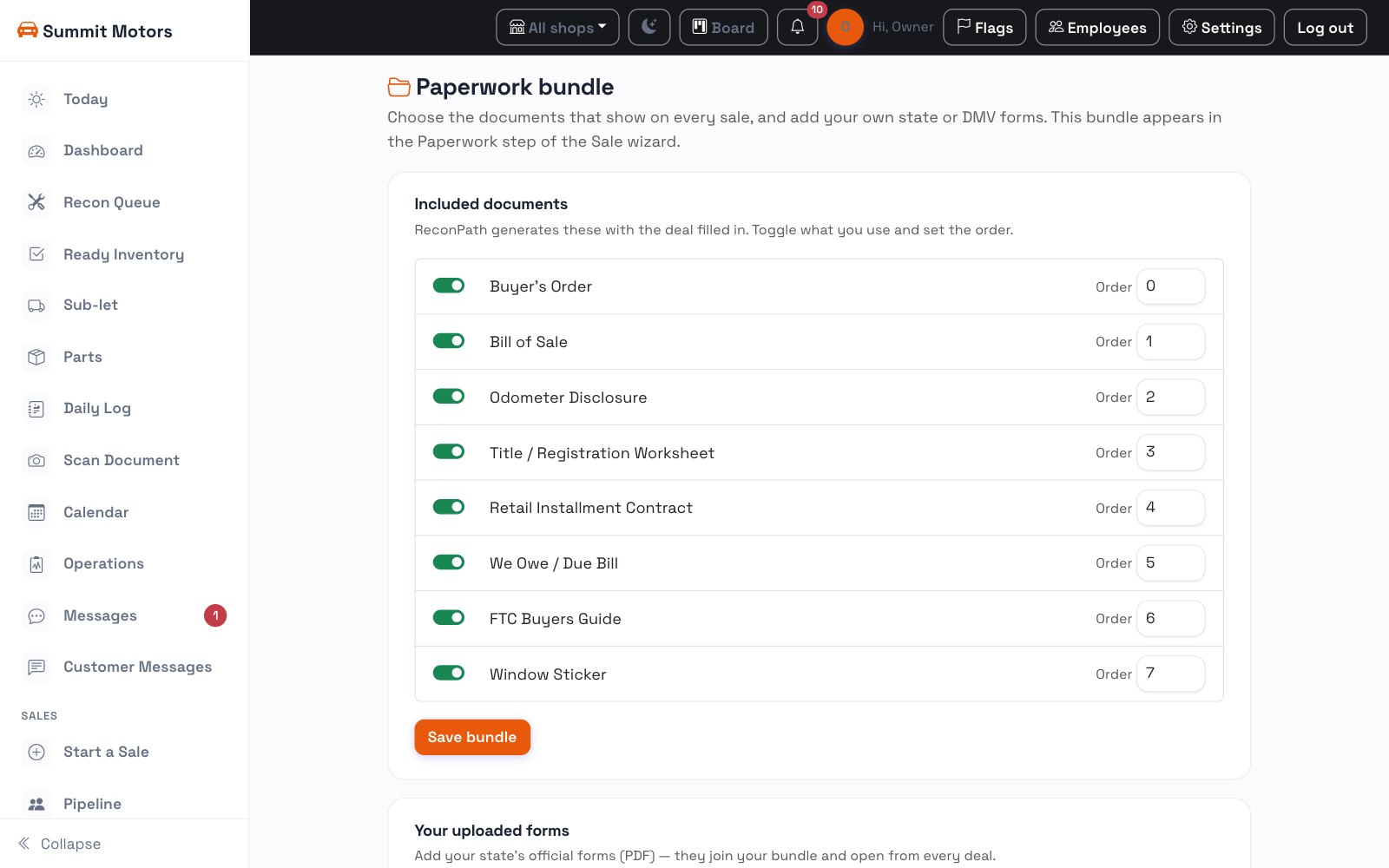
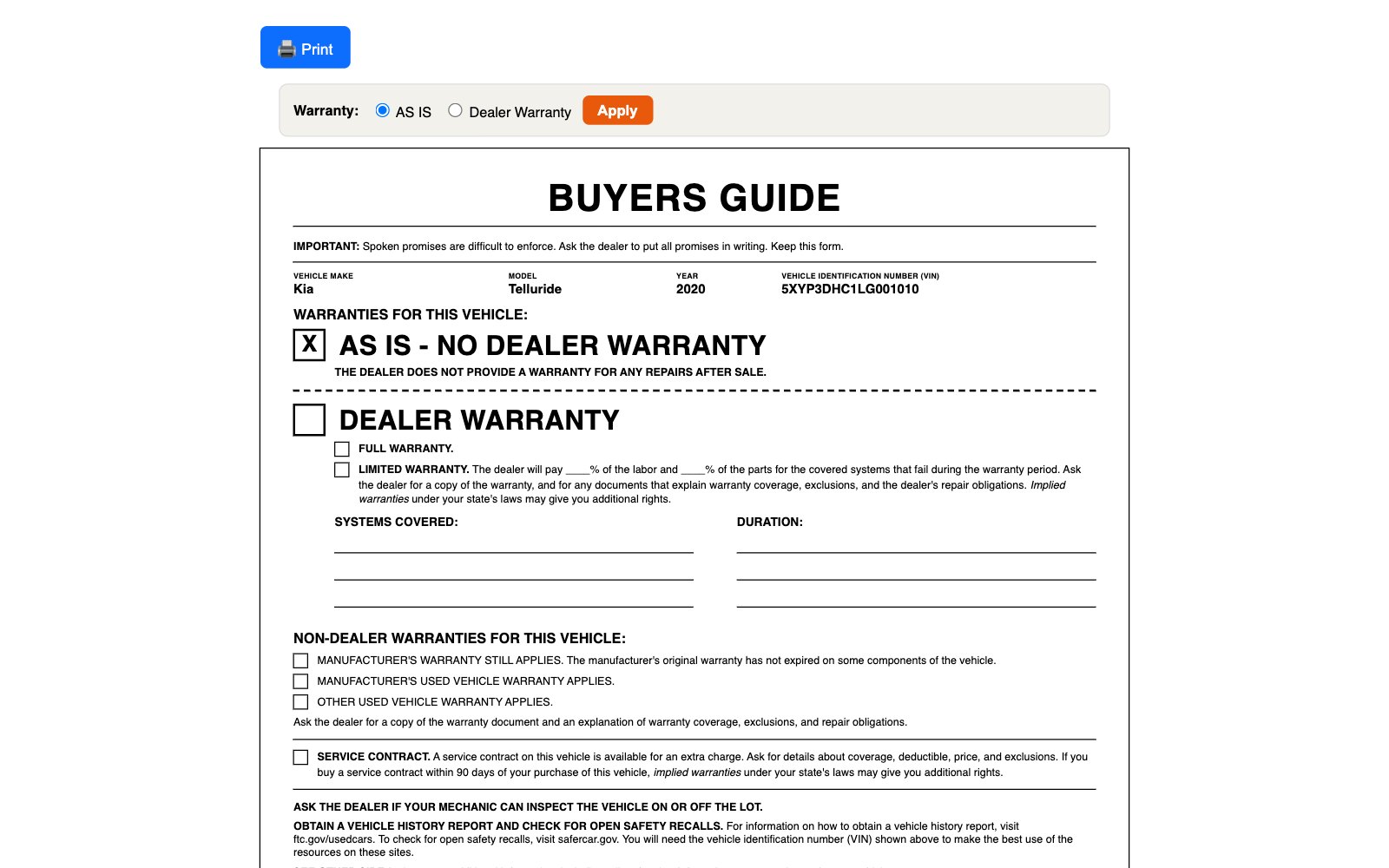
Every document in your paperwork bundle, the Buyer's Order, Bill of Sale, Odometer, the FTC Buyers Guide and your state forms, fills in automatically from the deal. Hit Print all forms for one packet, or Send all to e-sign to capture signatures on a tablet.
5. Close it out
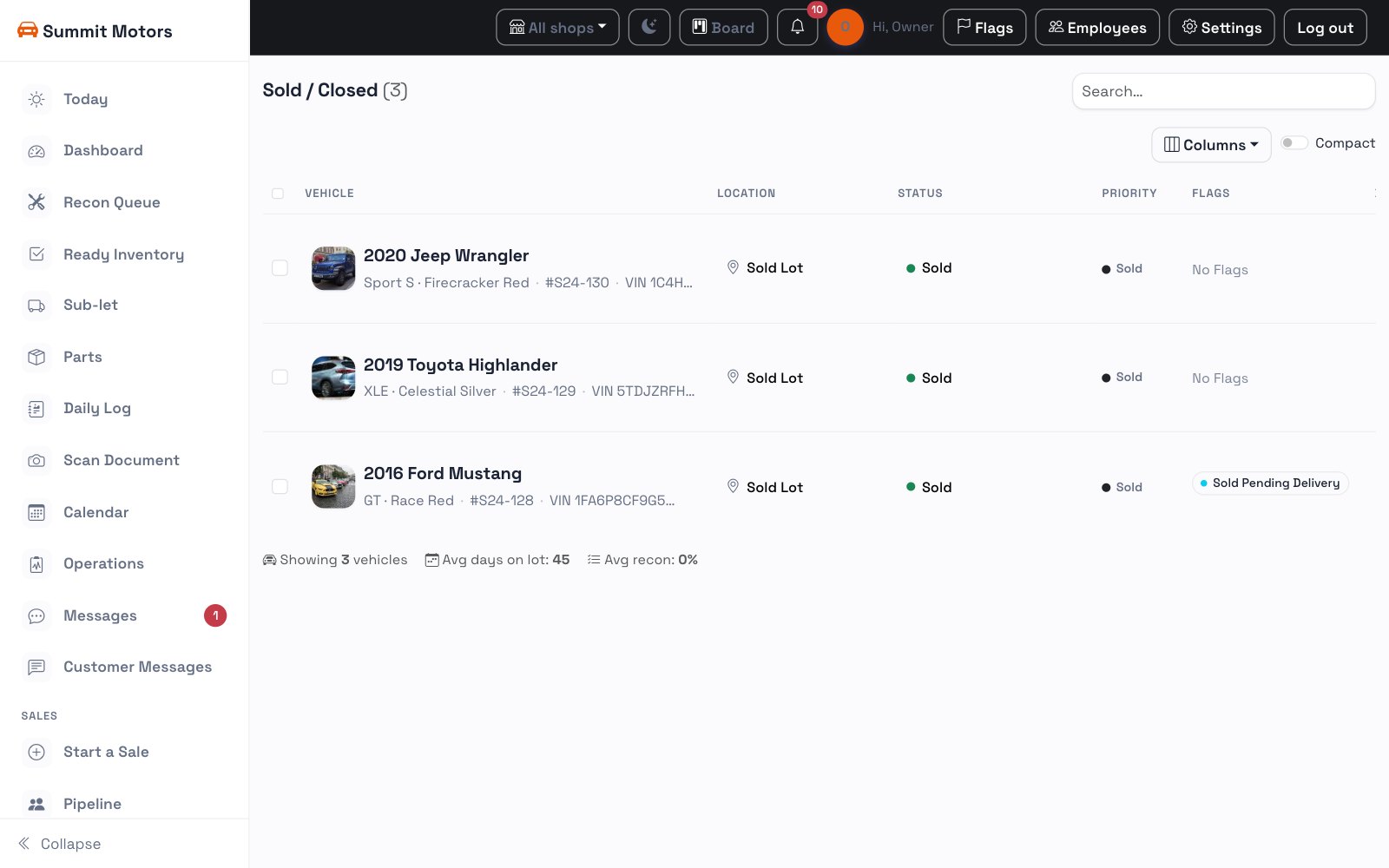
Mark the deal Sold. The vehicle flags Sold in inventory, the deal moves to your Sold / Closed list, and the signed paperwork stays attached to the customer and the vehicle so you can pull it up any time.